Getting started
Field Test is for logging what goes wrong during a software or hardware testing session, as it happens, and sharing the log at the end of the day. You tap a tile for each error, add a short note when it helps, and share one plain text log.
Everything stays on your device. Nothing is sent anywhere unless you share the log yourself (Privacy).
Install
Install Field Test from the App Store. It runs on iPhone and iPad.
The first time you open it
The first screen asks how you want to start.
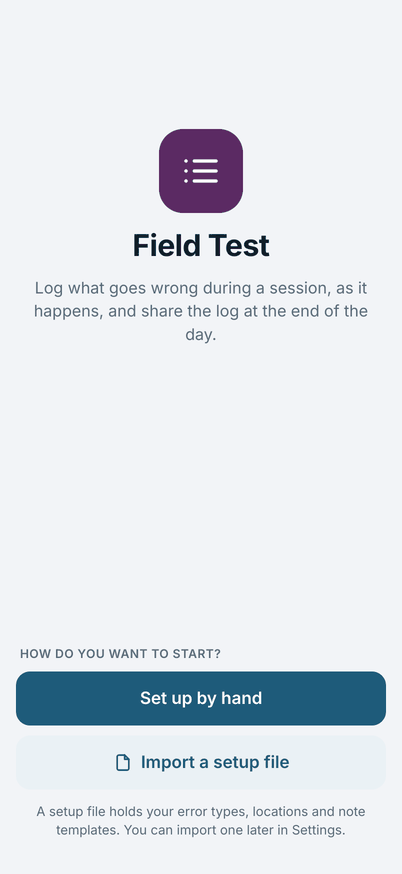
If someone gave you a setup file, tap Import a setup file. A setup file holds the error types, the places and the note templates your team uses, so your board is ready at once. The app shows what is in the file and asks you to confirm before it changes anything. See Importing and exporting.
If you set up on your own, tap Set up by hand. The app asks two things, which head every log you share:
- Tester: your name.
- Unit prefix: the letters before a unit's number, for example
UNIT. You type only the number each day.
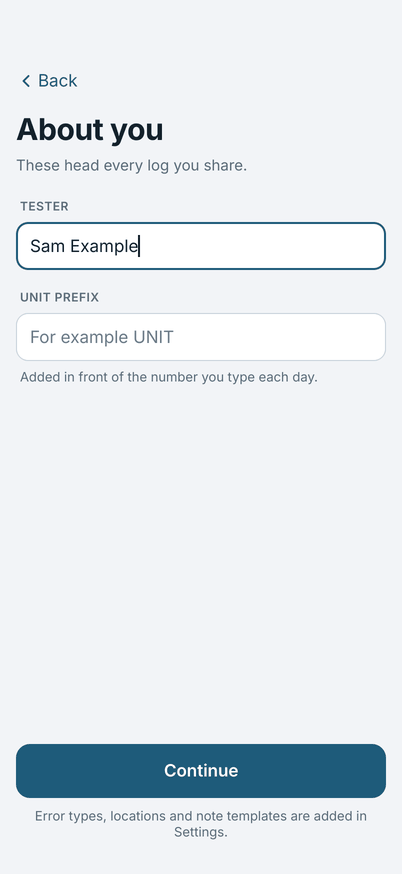
Tap Continue. The Log screen opens with an empty board and a button, Add error types. Add the types you log. Each one becomes a tile. Setting up the board shows how.
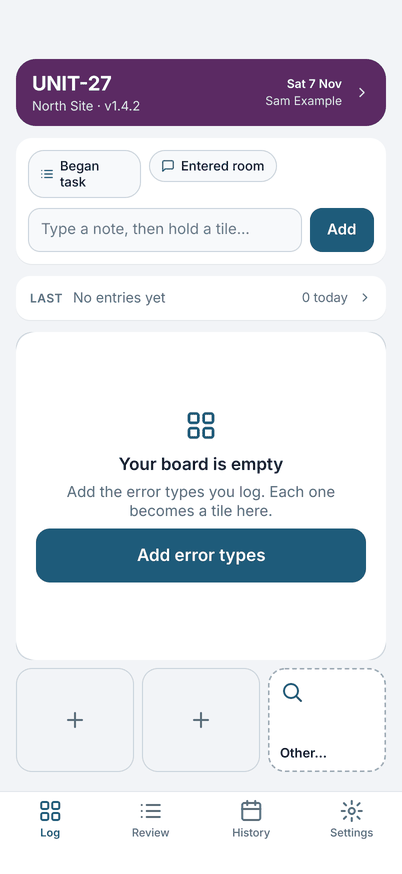
Your first entry
- Fill in Today's details (tap the purple card at the top) with the unit number, place and software version. You can skip it and log first: the card tells you what is not filled in yet. Today's details explains each field.
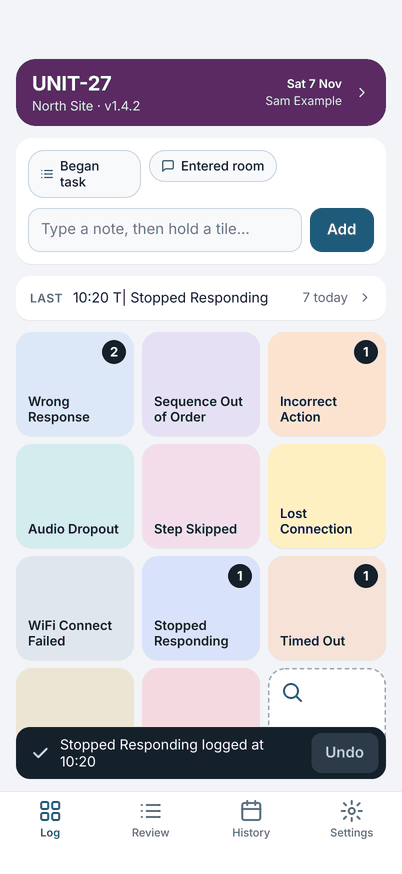
- Double-tap a tile. A message says what was logged and when, and the tile's count goes up.
- If you tapped the wrong tile, tap Undo on the message within five seconds.
Next: A day of logging.