Setting up the board
Everything that makes the app yours is in Settings: the tiles on the board, your error types, places and note templates, and your name and unit prefix.
Your board
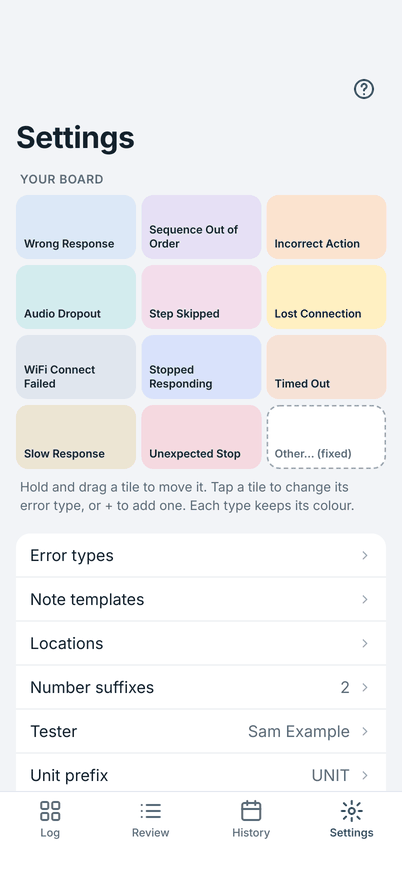
Your board at the top of Settings is a small copy of the Log screen's tiles. The board holds 11 error types and the fixed Other… tile.
- Move a tile: hold and drag it to another place. The type keeps its colour.
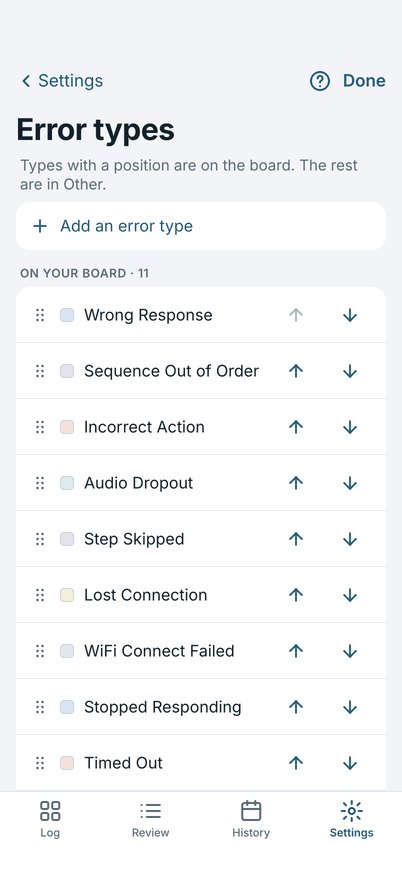
- Change a tile's type: tap the tile, then choose a type from the list. If that type is already on the board, the two swap places.
- Fill an empty place: an empty place shows +. Tap it and choose a type, or New error type… to make one.
Error types
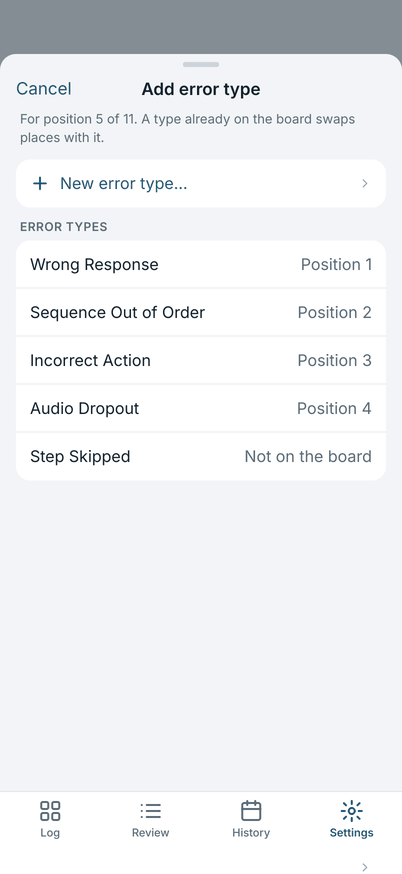
Error types is the whole list of what you can log. Add one with Add an error type. The first 11 on the list fill the board in the order shown. The rest are found under Other on the Log screen.
- Order: drag the handle, or use the arrows. The top 11 are the board.
- Rename or recolour: tap a type.
- Retire: a type you no longer use. It leaves the board and Other, and stays on entries already logged.
Locations and number suffixes
Locations are the places you work in, for example North Site. They are the choices for Location in Today's details.
Number suffixes are the choices for the Number suffix on Today's details, for example prod and dev; None is always the first choice.
Note templates
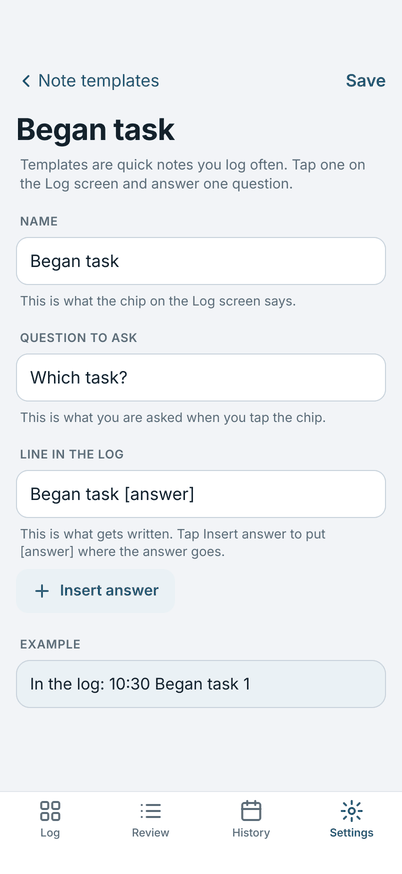
A template is a quick note you log often. Tap its chip above the note field on the Log screen, answer its one question, and the line goes in the log.
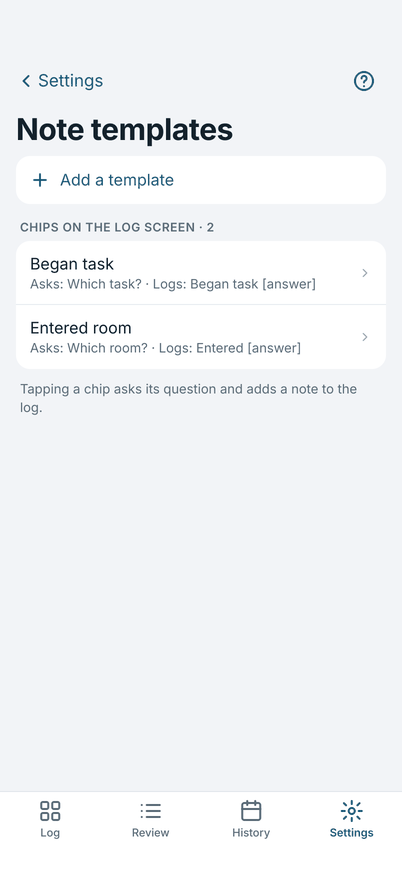
Each template has three parts:
- Name: what the chip on the Log screen says.
- Question to ask: what you are asked when you tap the chip, for example "Which task?".
- Line in the log: what gets written. Tap Insert answer to put
[answer]where your answer goes, for example "Began task [answer]". The Example at the bottom of the screen shows the line as it will appear.
Your name, prefix and totals
- Tester and Unit prefix are the two things asked on first launch. They head every log.
- Include a totals line adds a line at the end of a shared log with the count of each error type.
- Time format and Error prefix are further down the list. The error prefix is the marker before each error line
(
T|unless you change it). Change it only if the tool that reads your log expects something else.
Importing and exporting a setup file
Import or export in Settings moves your setup between devices or people.
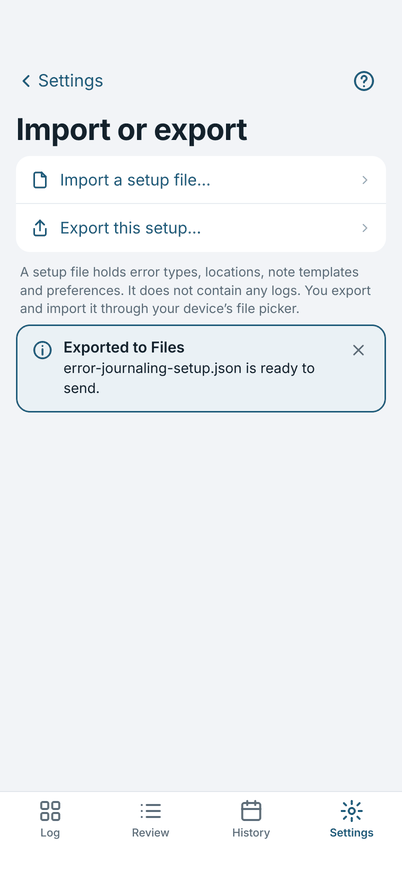
- Export this setup… makes a setup file and offers it to the share sheet or the file picker.
- Import a setup file… reads one. The app shows what is in it first.
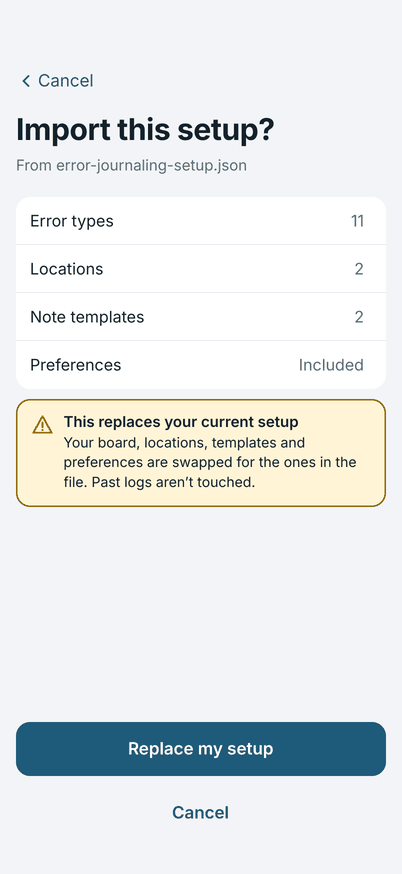
Importing replaces your setup (board, locations, templates and preferences). Past logs are not touched, and a setup file has no logs in it.
If the file has problems, the app lists every one, in the order they appear in the file, and changes nothing.
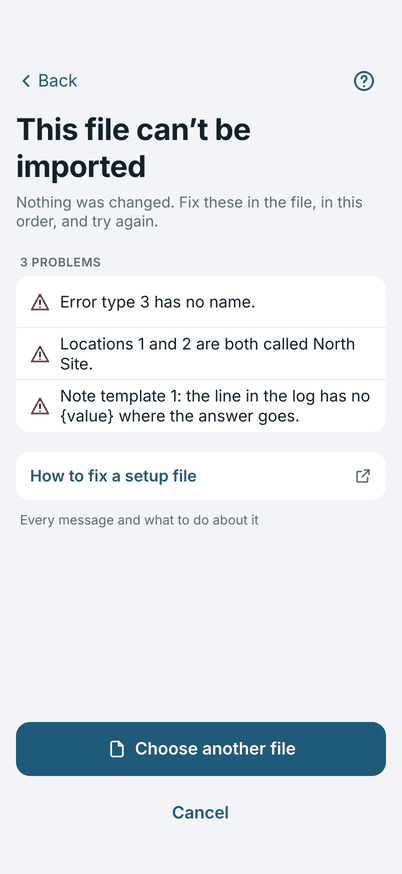
The setup file explains every key and every message, for whoever prepares the file.
The second board: Observations (optional)
The app can show a second board, Observations, for what you did as well as what went wrong. It is off until you turn it on, and while it is off the app looks and works as it always has: four tabs, and the first one is Log.
To turn it on, open Settings and turn on Second board: Observations (the Second board group, above the list of setup rows). A fifth tab, Observations, appears at once, and the first tab is now called Errors. The tabs are Errors, Observations, Review, History and Settings.
- The header card, the note box and the Last bar at the top are the same on both boards, so there is one note draft and Last shows the latest entry of either kind.
- The Observations board has a strip with its name, and its tiles are a different set of colours from the Errors board, so you can tell the boards apart. The tab, the strip and the label of each tile say which board you are on; do not rely on colour.
- To change board, tap the tab, or swipe along the strip that says Observations. A swipe anywhere else does nothing, so a slip over a tile never changes board.
- The app opens on the board you used last.
- The board has no observation types to start with: every type is one you made, as the error types are. Until there is one, the board is empty and offers Add observation types. A setup file with
interaction_typesbrings its own.
Turning the switch off hides the tab and the board. Nothing is deleted: the entries stay in the log and in Review and History, and what you set up is kept for the next time. If you were on the Observations board, the app goes to the Errors board.
Setting up the Observations board
With the second board on, Settings shows two more rows in the Second board group: Observation types and People. The Observations tab leads there too: while the board is empty, Add observation types opens the editor at once, and turning the switch on with nothing set up opens it for you.
Observation types works like Error types. Tap Add an observation type, give it a name and, if you want, a Line in the log:
- Tap Insert person to put [person] in the line, for example “Paired with [person]”. A type with [person] asks who after you log it. A type without it never asks, so a tile such as “Began task” logs at once.
- Tap Insert answer to put [answer] in the line, for example “Began task [answer]”. You are asked for the answer after you log it.
- With no line, the log shows the name of the type.
The line is the template of the type: there is no separate list of observation templates. “Paired with [person]” with the name “Paired with” writes “Paired with Alex Sample” when you pick Alex Sample.
The miniature board at the top shows the 11 tiles. Tap a tile to move it earlier or later or to change its type, tap an empty tile to add one, or hold and drag a tile. In the list below, the first 11 types fill the board in the order shown; drag the handle, or use the arrows, to change it. The rest are under Other…. A type you retire leaves the board and stays on the entries already logged.
People
People is the list of names an observation can use. It is optional: a type with no [person] in its line never asks who. In Settings, Second board, tap People:
- Type a name under New person and tap Add person. If you have locations, choose the one the person belongs to; Everyone in the picker ticks the people of the location in force. A name is at most 60 characters, and two people cannot share a name.
- Tap a name to rename it. Entries that name the person show the new name.
- In the same sheet, under Location, choose another location for the person, or No location, and tap Save. Entries already logged are not touched; the change only decides who Everyone ticks.
- Retire takes a person out of the picker. They stay on the entries already logged, and Bring back undoes it.
- Forget removes a name for good, after you confirm. The entries stay and show “someone”.
Names stay on the device and are never part of an export. A log you share shows them as you choose under Names in shared logs.
Names in shared logs (also in the Second board group) sets how a person's name is written when a log leaves the app, in Copy, Share and a re-shared past log: Initials (the default, for example “A.S.”), Full name, or Someone for no name at all. Review and the Observations board always show the full name, because that stays on the device.