 Field Test
How to use Field Test
Three steps cover a normal day. The Guide has the rest.
Step 1: Set up your board
Open the app. The first screen asks how you want to start.
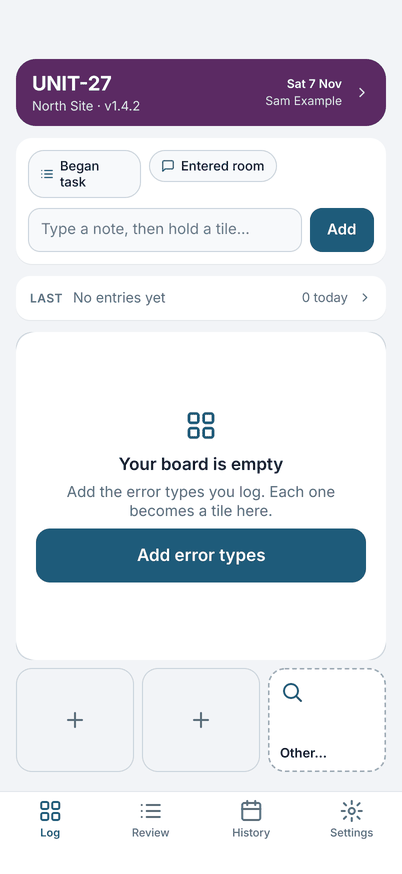
- Someone gave you a setup file? Tap Import a setup file. The app shows what is in it and asks you to confirm before it changes anything.
- On your own? Tap Set up by hand. Enter your name as tester and a unit prefix such as UNIT. Then tap Add error types and make a tile for each error you log.
Setting up the board in the Guide.
Step 2: Log through the day
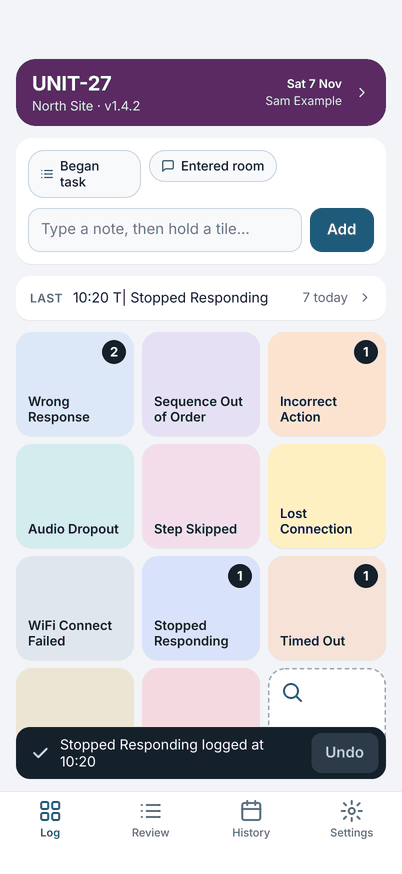
- Fill in Today's details: unit number, place and software version. You can log first and fill it in later.
- Double-tap a tile when the error happens. The time is taken from your phone. A message says what was logged, and the count on the tile goes up.
- Tapped the wrong one? Tap Undo within five seconds.
- Want to say more? Hold the tile. If you typed a note first, it goes with the error. If not, the entry opens so you can type one.
- Not on the board? Tap Other, then search or add a new error type.
A day of logging in the Guide.
Step 3: Share the log
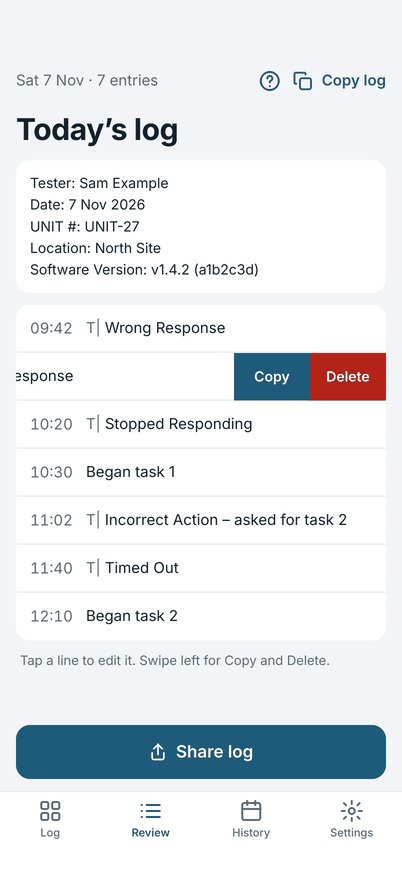
At the end of the day, open Review. It is today's log in the same words you will send. Tap an entry to fix it. Tap Share log and choose where it goes: a chat app, Mail, Files or the clipboard.
10:20 T| Stopped Responding
11:02 T| Incorrect Action – asked for task 2
Only Share log marks a log as shared. Copying does not. The next morning the app offers to start a new log. Yesterday's stays in History.
Sharing and the next day and History in the Guide.
One more thing: Observations
If you also log what you did, turn on the second board in Settings. Double-tap works the same way. See the Guide.
Stuck?
Try Troubleshooting in the Guide, then Support.
Going further
- Note templates
A chip above the note field writes the line for you.
- Changing the software version during the day
Earlier entries keep the old version.
- Past logs
Every earlier day, until you delete it.
- Preparing a setup file for others
For whoever sets up a team.