A day of logging
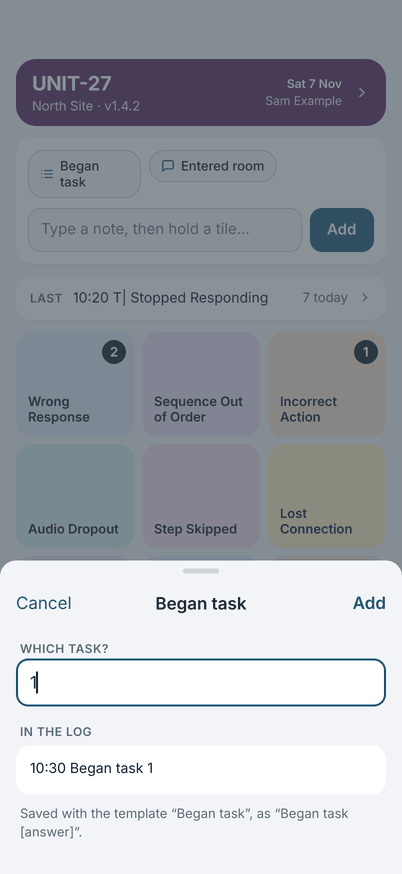
The Log screen is the one you use all day. At the top is Today's details, then your note chips and note field, the Last bar, and the board.
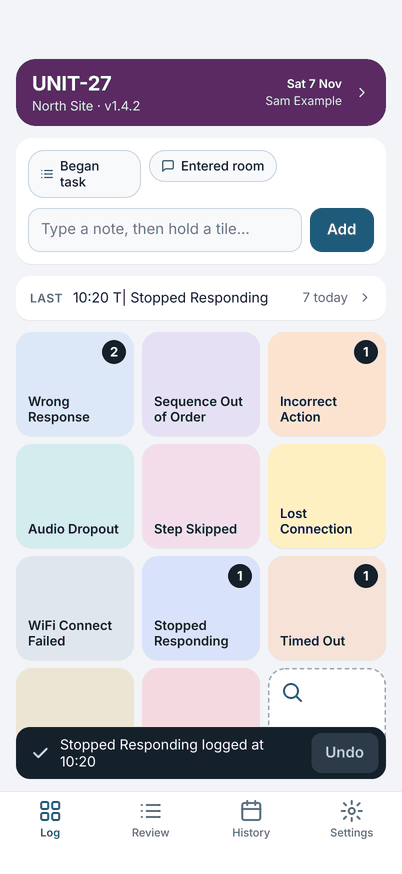
Log an error: double-tap
Double-tap a tile to log that error with the time of the tap. The tile shows a count of how many you logged today, and a message appears at the bottom.
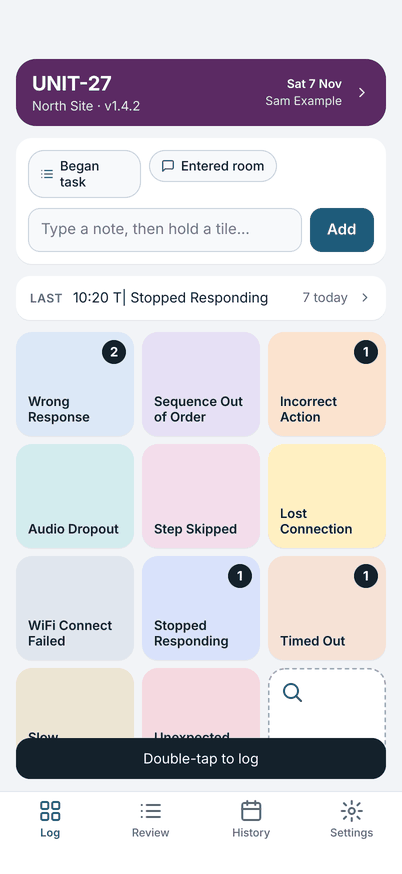
One tap logs nothing. It only shows the hint Double-tap to log, so a touch by accident never makes an entry.
Undo and repeats
For five seconds after you log, the message has an Undo button. It removes that entry completely. If the same error happens again while the message is showing, double-tap the tile again: the message changes to ×2, ×3 and so on, so a repeat is easy to spot.
After the message has gone, change or delete an entry in Review.
Log an error with a note: hold
Hold a tile for half a second to log the error with a note, as one entry.
- If you typed a note in the note field but did not tap Add, the hold logs the error with that note and clears the field. One Undo takes the entry back and puts your note back in the field.
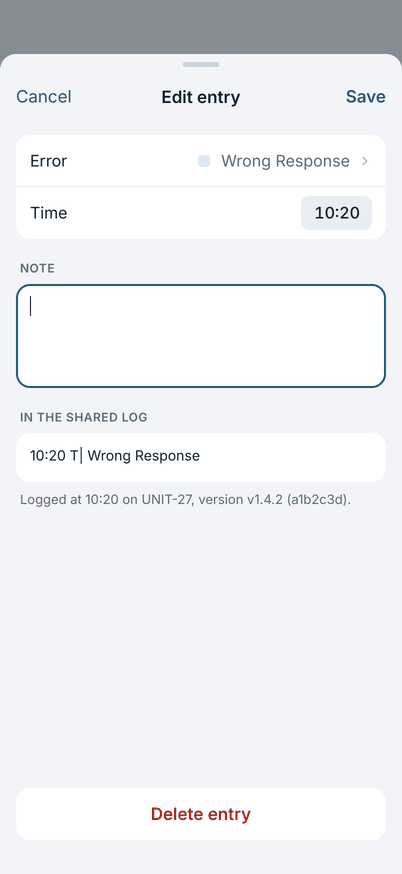
- If the note field is empty, the hold logs the error and opens Edit entry with the cursor in the note. Save adds the note. Cancel keeps the entry without a note.
Other: errors that are not on the board
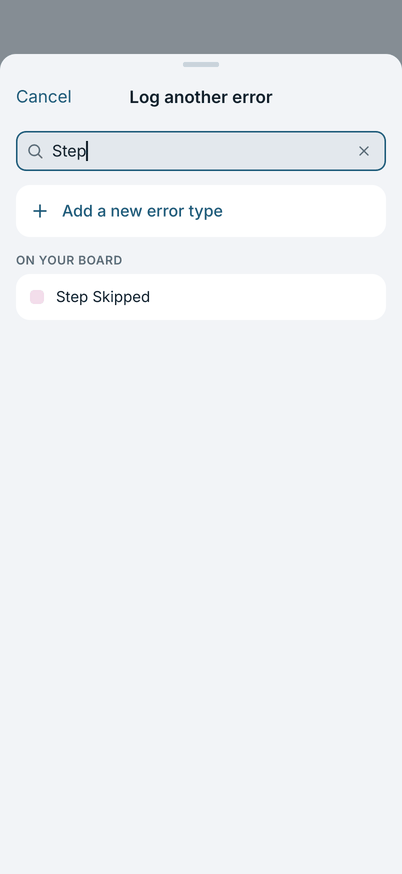
The last tile, Other…, opens on one tap. It lists every error type, with a search field, and Add a new error type at the top. Pick one to log it, as if you had double-tapped its tile.
Notes
Type in the note field and tap Add to log a note on its own. Return starts a new line, so a note can have several; while you type, the field opens over the board to five lines and then scrolls, and it folds back to one line when you leave it. The shared text prints each note on one line.
Dictating a note. On a phone that can recognise speech on the phone itself, the note field has a microphone at its right-hand end (the left in a right-to-left language). Tap it, speak, and your words appear in the note as you say them; tap it again to stop. It also stops after a minute of silence, when you leave the app, or when you tap Add (the note is what the box holds at that moment, and the keyboard goes down). Nothing listens until you tap it, and the first time the phone asks you to allow the microphone and speech recognition. The words are recognised on the phone: no sound and no text are sent anywhere. If you refuse, the note says so and typing works as before. You can edit the words like any text. Where the phone cannot recognise speech on the phone for your language, there is no microphone. It is timed when you add it. A note you started and did not add is kept if you leave the app.
Note templates are the chips above the field. Tap one, answer its question and tap Add. The line in the log is written for you, and the sheet shows how it will look.
The Last bar
The Last bar shows the latest entry and how many entries you have today. Tap it to open Review.
Next: Today's details.
The Observations board (optional)
With the second board turned on (see Setup), the Observations tab is a board like the Errors board, for what you did around the unit. Double-tap a tile to log it; a count badge, the undo message and hold to add the note you typed work as they do for errors. The Other tile lists the observation types that are not on the board.
The app has no observation types of its own. The board shows only the types you make, in Settings, Observation types, or that a setup file brings (see the setup file). Until you make one, the board is empty and its tiles say Add observation type.
The entry is logged first, and the question comes second. If the type has a line with a person in it (for example “Paired with [person]”), a list of People opens at once:
- The people you used last are chips under the heading Recent: tap one to tick it. People saved for the place in force today come first in the list.
- Type a name in the search field. If nobody matches, tap Add "name" as a new person. You type a name once; next time you pick it from the list. A name that differs only by capital letters or spacing is the same person.
- Tap a name to tick it, tap again to untick. You can tick up to 20 people. Everyone here ticks the people saved for the place that is in force today.
- Tap Done to put the ticked people on the entry. Skip leaves it as it was logged; it shows as "person not set".
If the type has an answer in its line (Began task, Assigned), a small sheet asks for it. Cancel leaves the entry as logged.
Because the entry is saved before either sheet opens, closing a sheet or putting the phone away never loses it. Undo removes the entry and closes the sheet. Names stay on the phone. They are not in the setup file, and the text you share shows them as initials by default.